Every Atari 5200 game on AtariOnline.org runs in your browser through EmulatorJS and its a5200 core, an open-source emulator built from the Atari800 project. There is nothing to install and no BIOS file to find: the core carries a free replacement for the console’s operating system. The catch is that the 5200 controller had things your keyboard does not: an analog stick, four fire buttons, a twelve-key number pad and separate Start, Pause and Reset buttons. This guide shows where all of that lives on your keyboard, what the toolbar over the screen does, and how to fix the usual problems.
Starting a game
A 5200 game page first shows a screenshot with a Play button. The emulator and its core (about 1.3 MB) are only downloaded when you click it, which keeps the page light. A status line under the screen says “Loading the emulator…” while that happens; after a few seconds the cartridge boots on its own and you see the title screen or a demo.
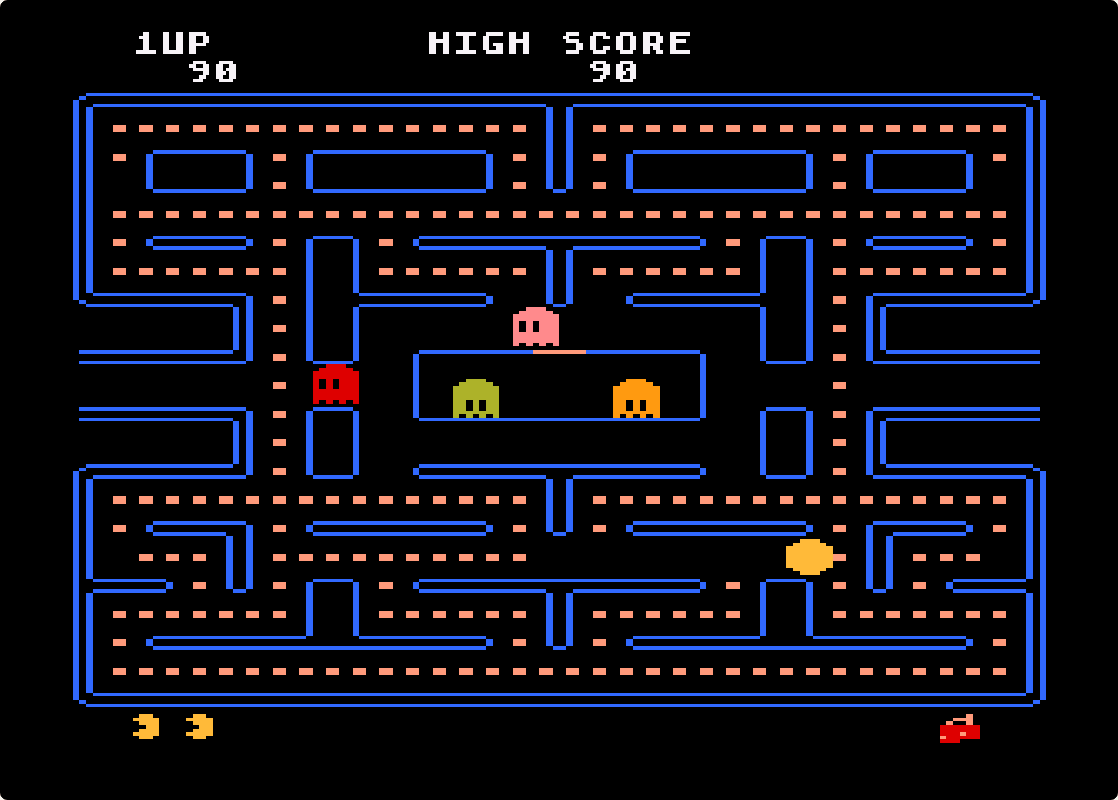
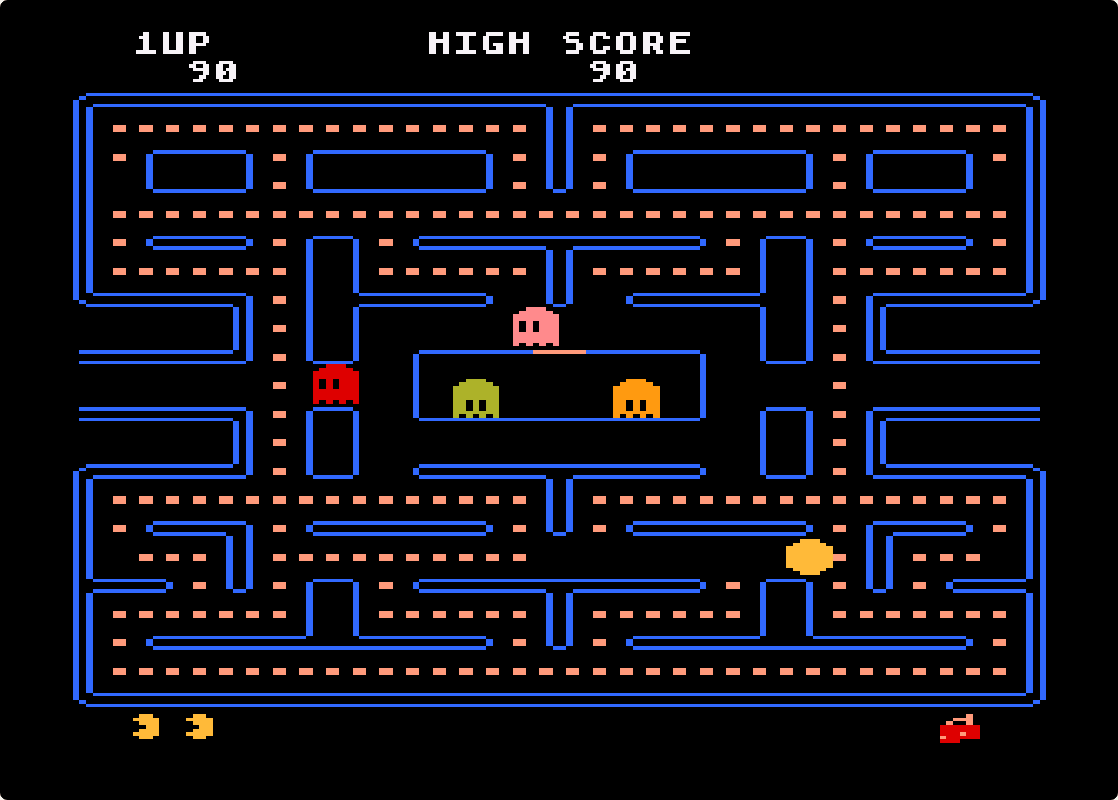
Most games then wait for the console’s Start button, which is Enter. Many of them let you set options on the title screen first, using the keypad keys described below. Pac-Man is typical: the minus key picks one or two players, the equals key picks the starting level, and Enter starts the game. If a game seems to ignore you, it is almost always waiting for Enter.
Keyboard controls
The same keys work on every 5200 game page, and the page lists them again under each emulator.
| Controller | Player 1 | Player 2 |
|---|---|---|
| Joystick | Arrow keys | I / J / K / L |
| Lower fire buttons | Z | N |
| Upper fire buttons | X | M |
| Start | Enter | – |
| Pause | P | – |
| Keypad digits 0–8 | 0 to 8 on the keyboard | – |
| Keypad * | – (minus) | – |
| Keypad # | = (equals) | – |
| On-screen keypad | K | – |
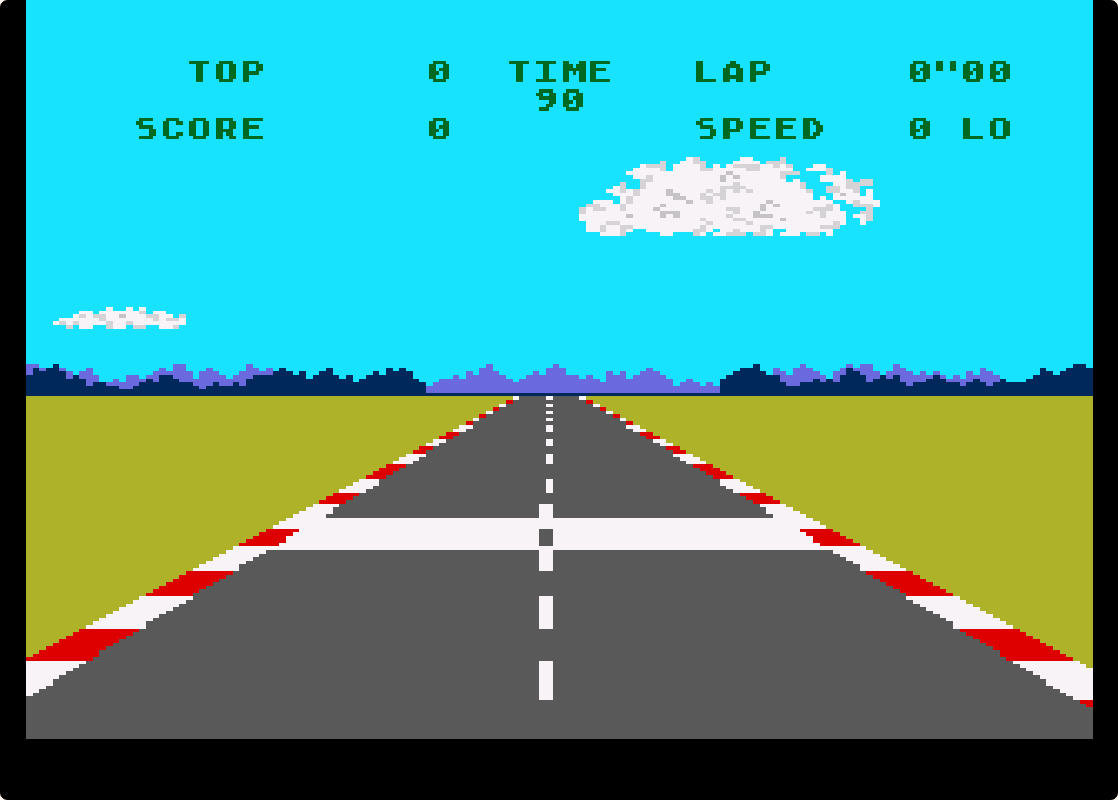
Why two fire keys? Each side of the 5200 controller had a pair of buttons, one above the other, so you could reach them with either hand. Many games treat the two the same and use only one, but some give each its own job: in Pole Position the lower buttons accelerate and the upper ones brake, and in Qix they draw fast and slow. When a manual says “bottom button” or “lower button”, that is Z; “top button” is X. If you are unsure, try both.
The keypad
The number pad is what makes the 5200 different from the 2600 and 7800. Each cartridge came with a plastic overlay that slipped over the twelve keys and labelled them for that game, so the same key could mean “formation” in one game and “shields” in the next. On this site the digit keys 0 to 8 press the matching keypad key directly, the minus key is * and the equals key is #. The digit 9 is the one key without a shortcut: press K to open the on-screen keypad, move the highlight with the arrow keys and press Z to press the key. You can use the on-screen keypad for every key, if you prefer to see the layout.
What the keypad does is different in every game, so each game page says so next to the key list. A few examples of how varied it is:
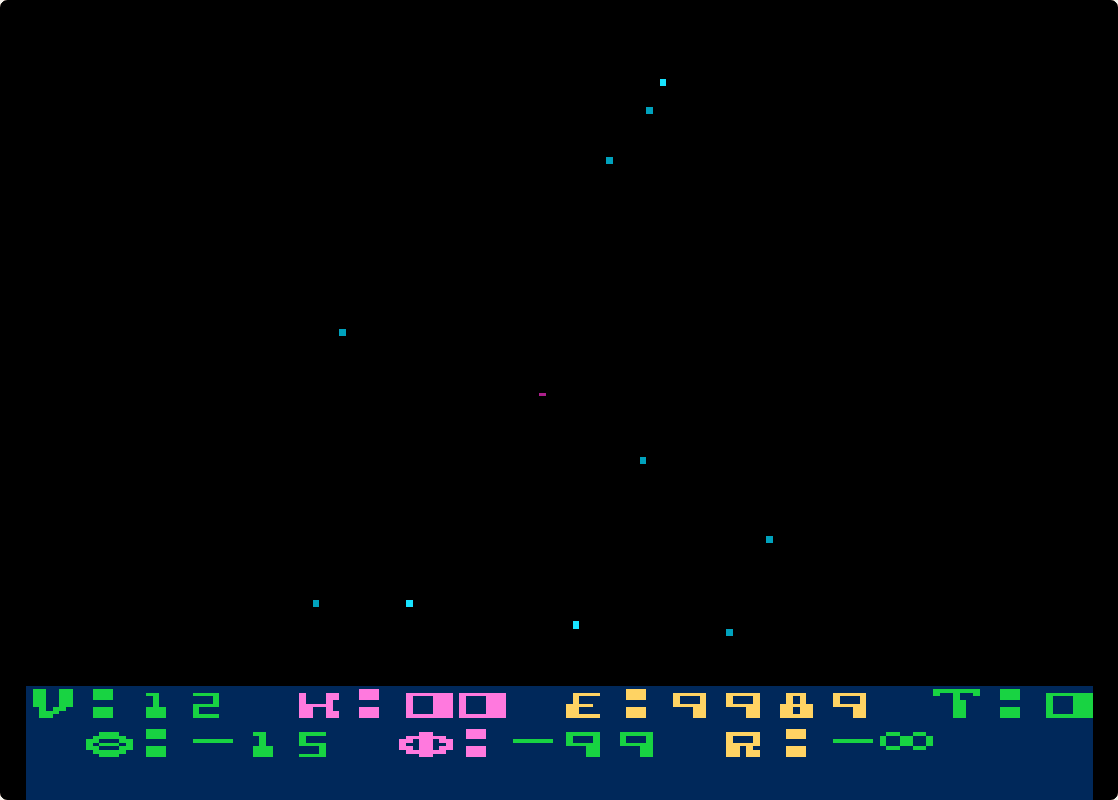
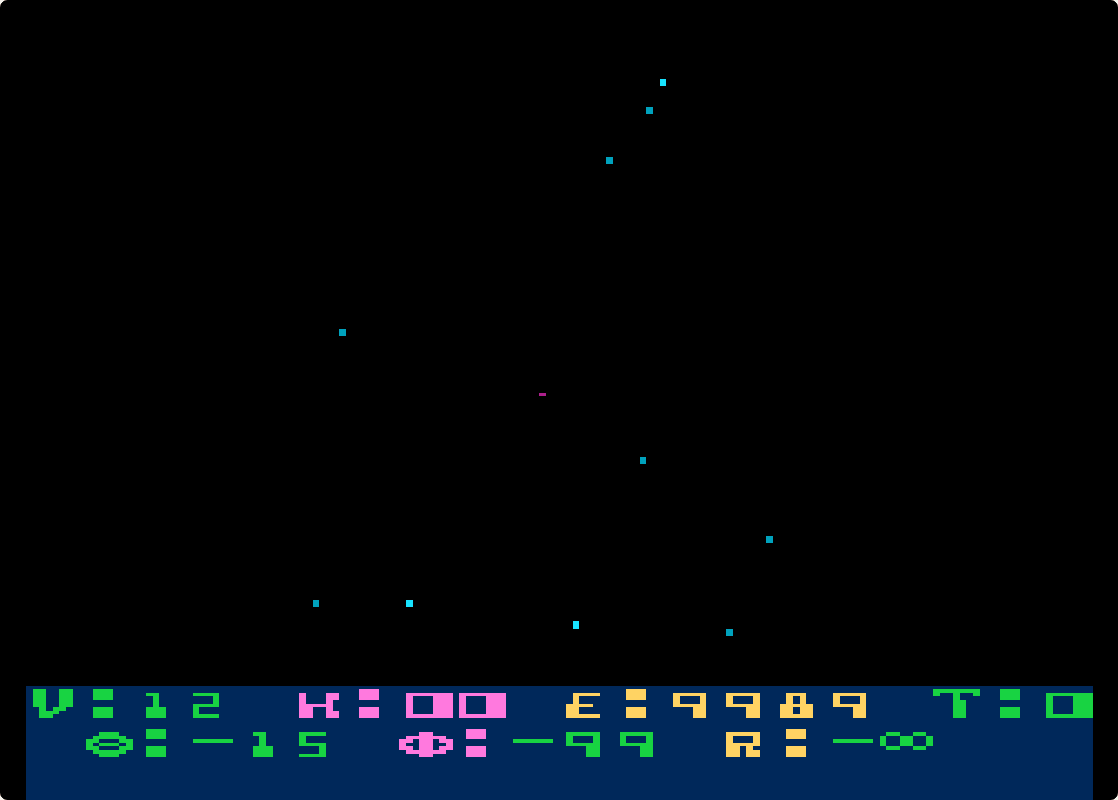
- Star Raiders runs the whole ship from the keypad: # switches to Control Mode, where 1 to 9 pick views, the galactic chart, shields, the attack computer and hyperwarp; * switches to Speed Mode, where the digits set your speed.
- RealSports Football calls its plays on the keypad, formation first and then the play.
- River Raid and H.E.R.O. use the digits to pick the game, that is the starting point and the number of players, before you press Start.
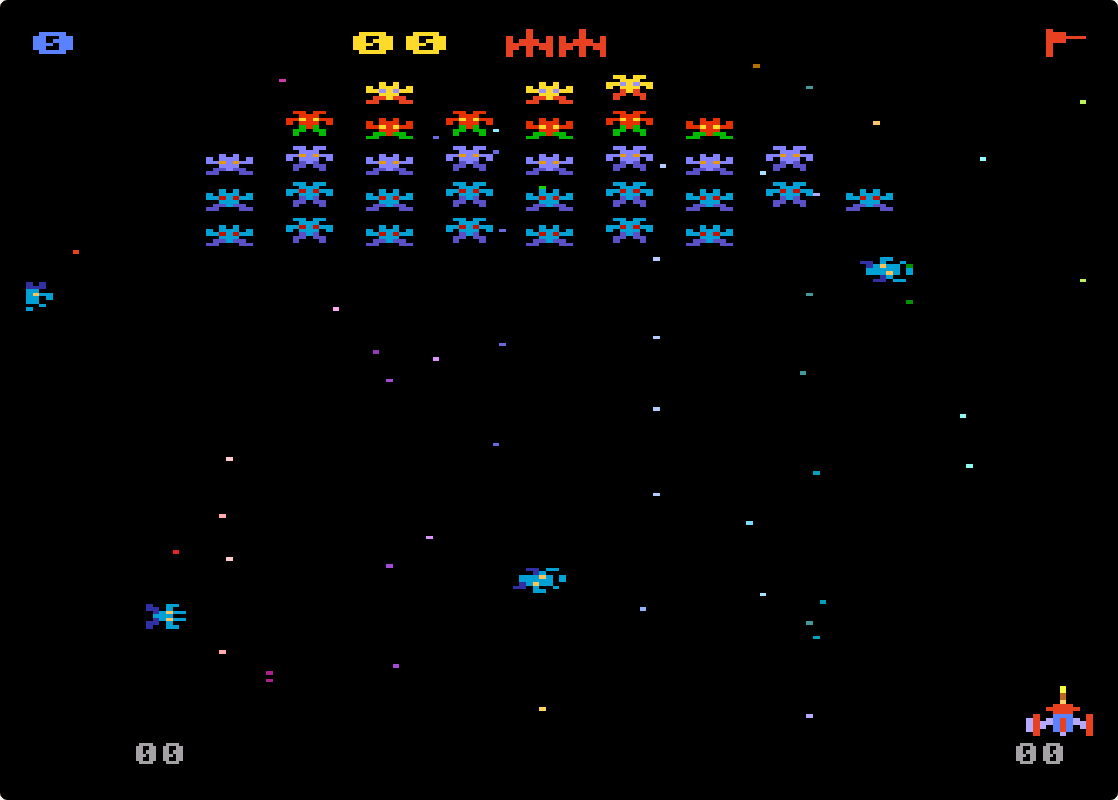
- Galaxian starts the moment you press a digit, which also sets the skill level.
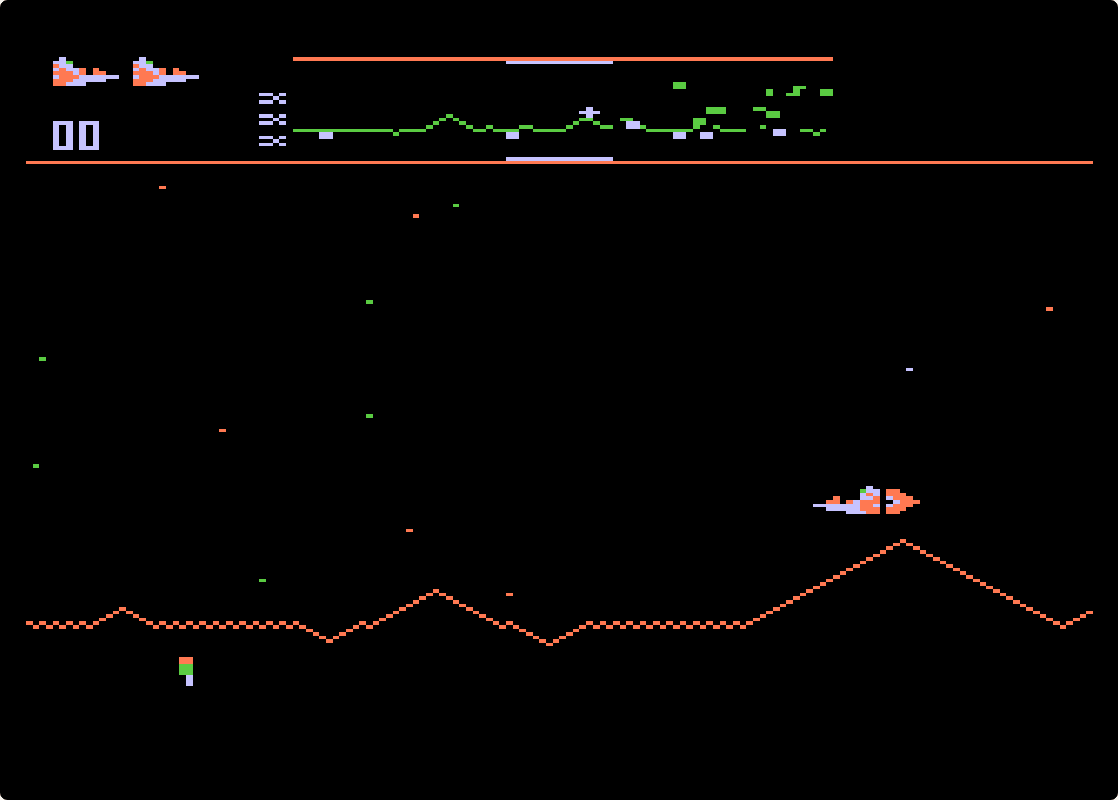
- Defender sends you into hyperspace with any keypad key during play.
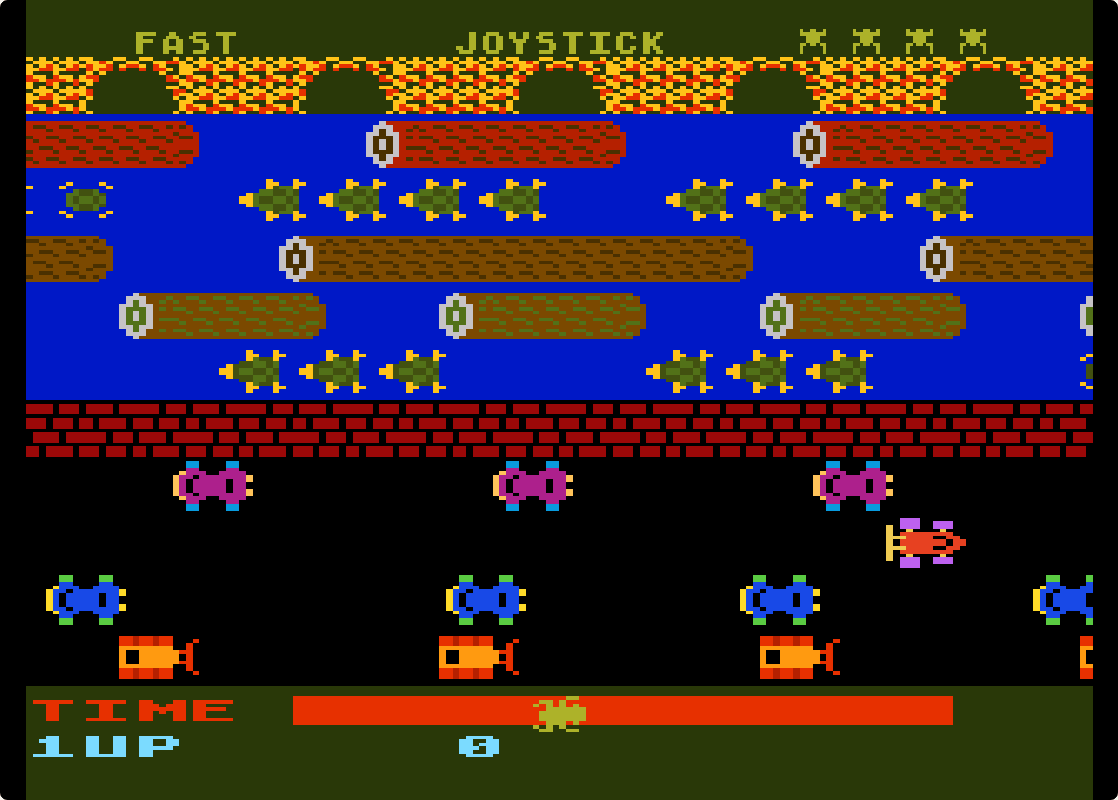
- Frogger can be steered from the keypad instead of the stick: press 0 to switch, then hop with 2, 4, 6 and 8.
The analog stick and your arrow keys
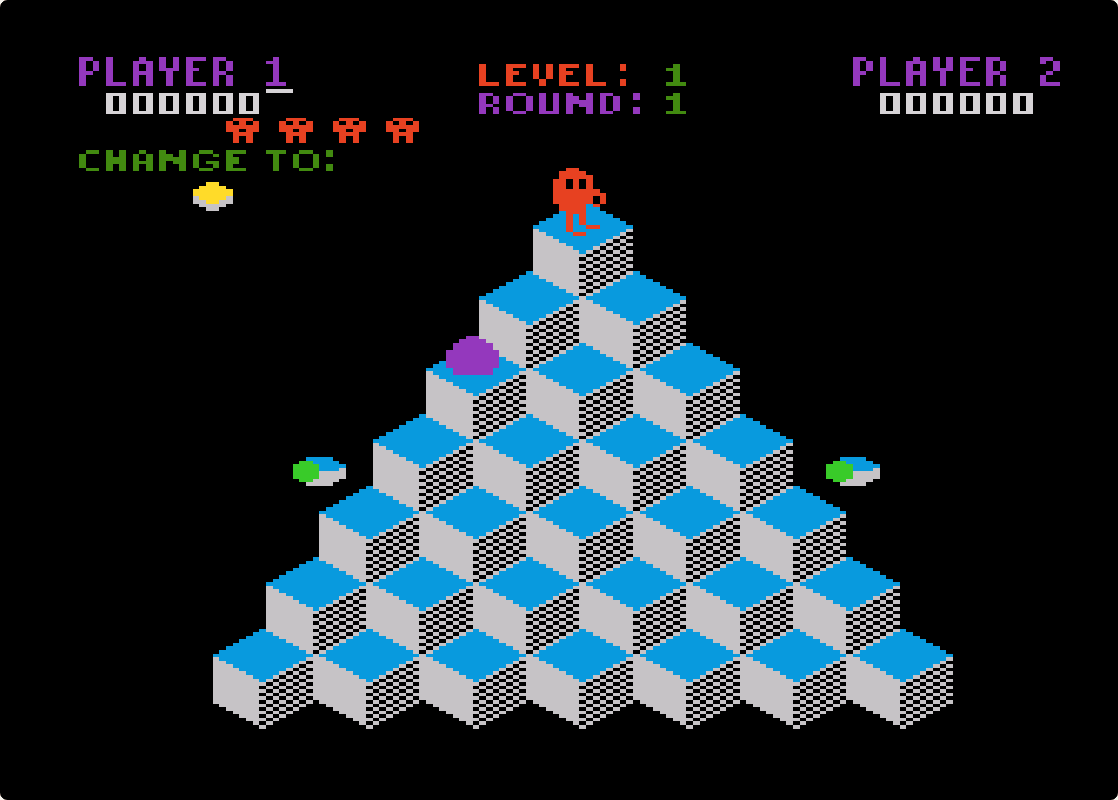
The real 5200 stick did not spring back to the middle when you let go, and games read how far it was pushed, not just which way. Your arrow keys cannot do that, so the emulator turns each key press into a stick pushed a fixed distance in that direction and returns it to the centre when you let go. The core sets that distance game by game, using the cartridge it recognises, so you do not have to adjust anything. In practice the arrows behave like a good self-centring joystick, which is better than most players ever got from the original hardware. Diagonals are the two arrow keys together, which matters in Q*bert, where every hop is diagonal.
The toolbar over the screen
Move the mouse over the game screen while a game runs and a toolbar appears along the bottom edge. It is the standard EmulatorJS bar, with a few features switched off because they make no sense for a cartridge console. The useful buttons are:
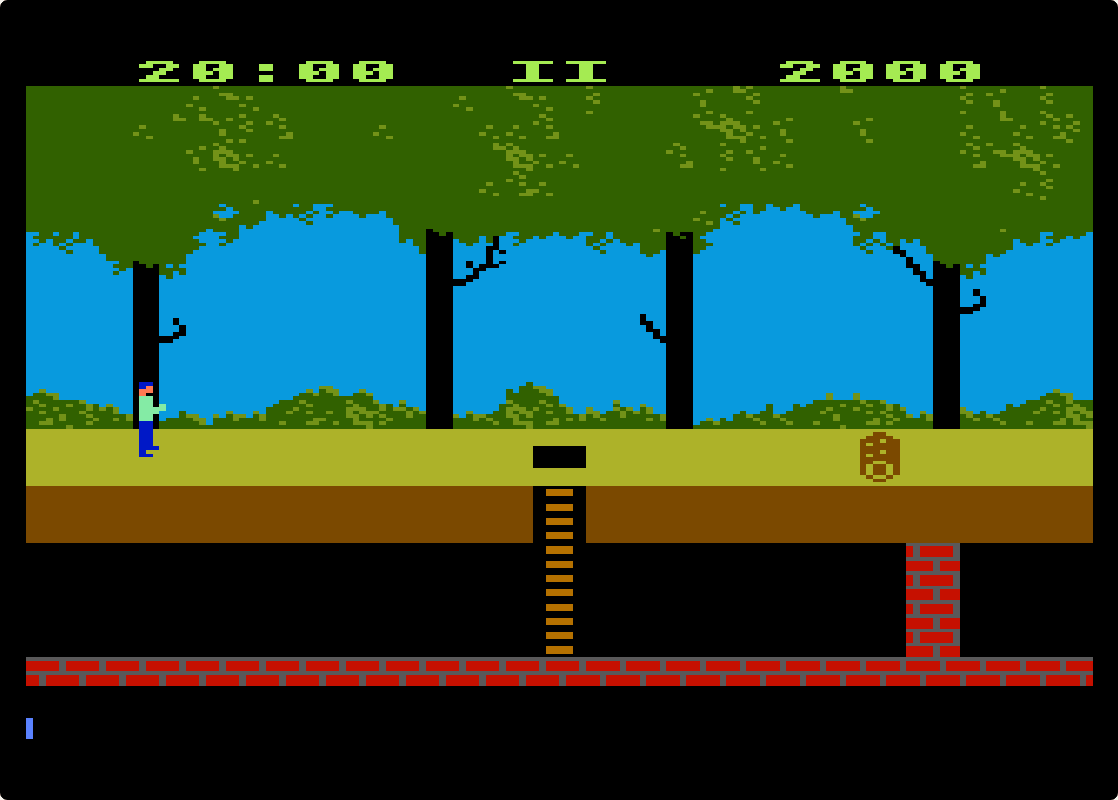
- Pause / Play – stops the emulation. The game’s own Pause button is P, which some games handle differently (Pitfall!, for instance, needs a digit key to resume).
- Restart – boots the cartridge again from the beginning, the same as switching the console off and on. There is no Reset key on the keyboard, so this is the way to get back to the title screen.
- Save state and Load state – freeze the game at any moment and return to it later. The state is stored by your browser on this device, so it survives a page reload but does not follow you to another computer. Save before a hard wave, and before you try something risky in Star Raiders.
- Sound – mutes and unmutes the game.
- Full screen – fills the display; Esc leaves it.
- Screenshot and Settings – the settings include the on-screen control layout and the emulator’s video options.
Two players on one keyboard
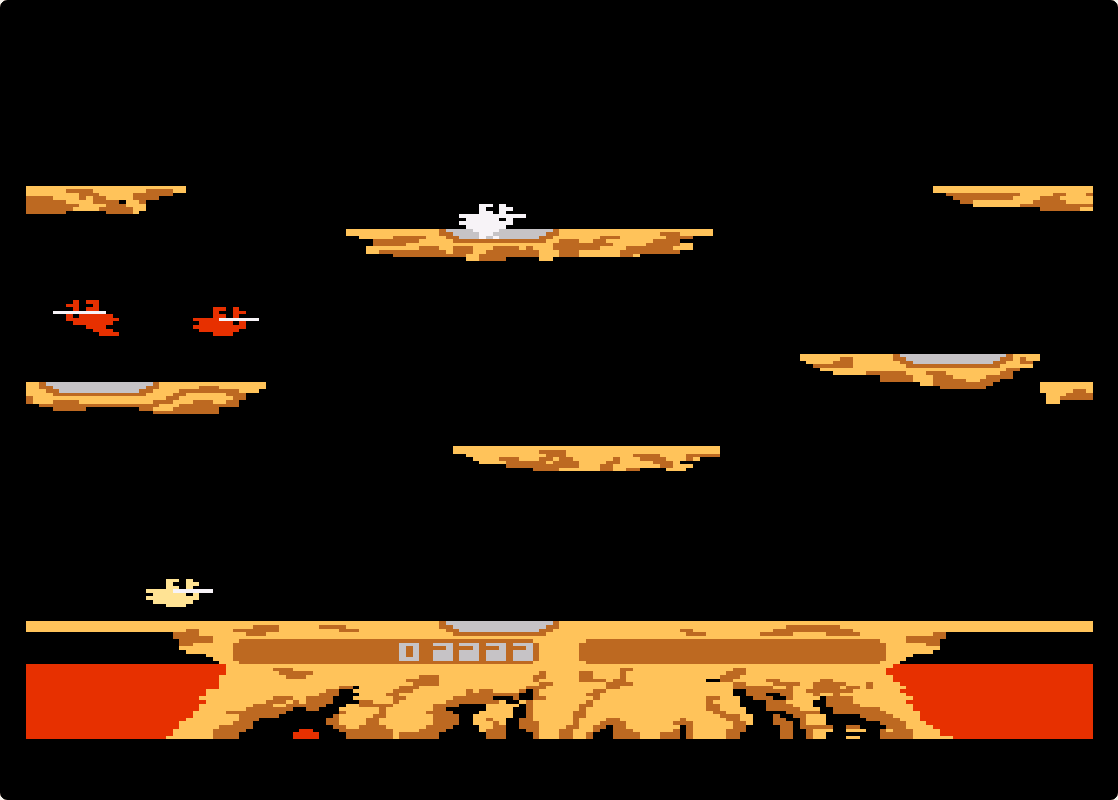
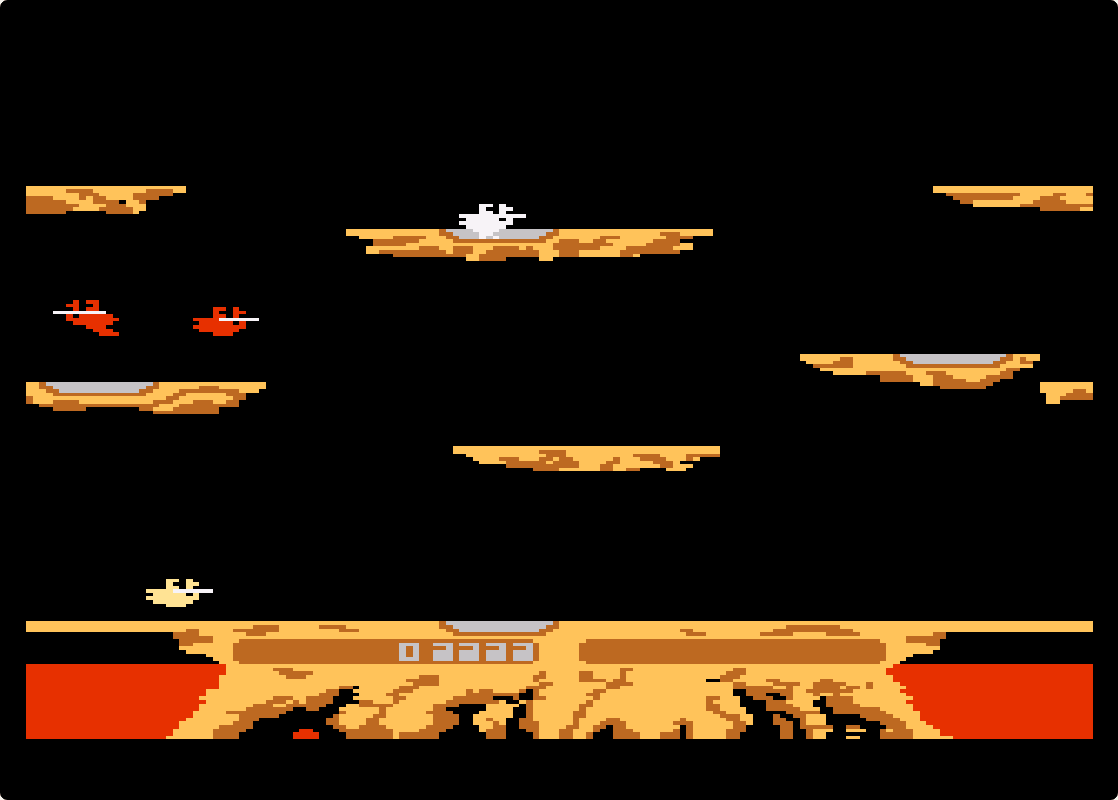
When a game supports two players, its page shows the player 2 keys: I, J, K and L for the stick, N and M for the two fire buttons. One person sits at the arrows with Z and X, the other on the right of the keyboard. The games where both players are on screen at the same time are the ones worth sharing a keyboard for: Joust, Mario Bros., Ballblazer and the RealSports games. Pick two players with the keypad keys on the title screen before you press Enter. In alternating games such as Pac-Man or Centipede, the second player’s turn simply uses the same keys.
Ordinary keyboards register only a few keys pressed at the same time, so when two people hold several keys each, some presses can get lost. That is a limit of the keyboard, not the emulator; a gamepad for one of the players solves it.
Trak-Ball games and two-stick games
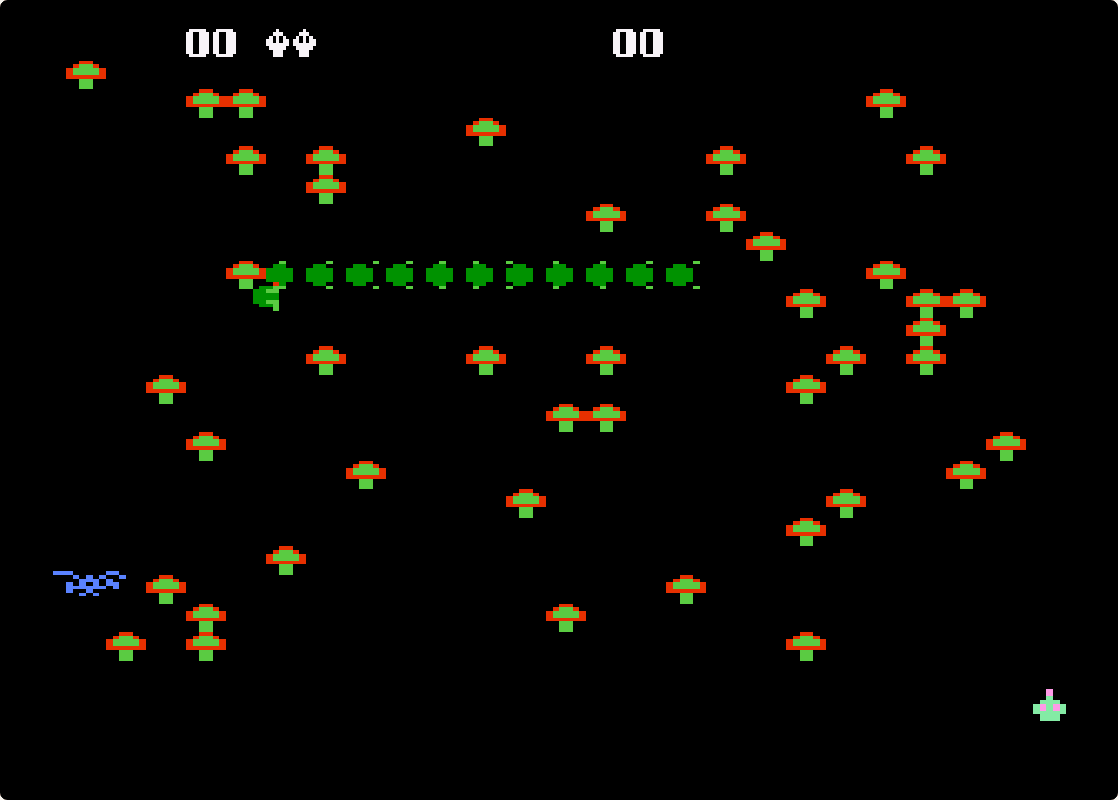
Atari sold a Trak-Ball controller for the 5200 and a few cartridges supported it, among them Centipede, Missile Command, Super Breakout and the unreleased Millipede. The Trak-Ball is not emulated here: these games run in their joystick mode, so you play them with the arrow keys like everything else.
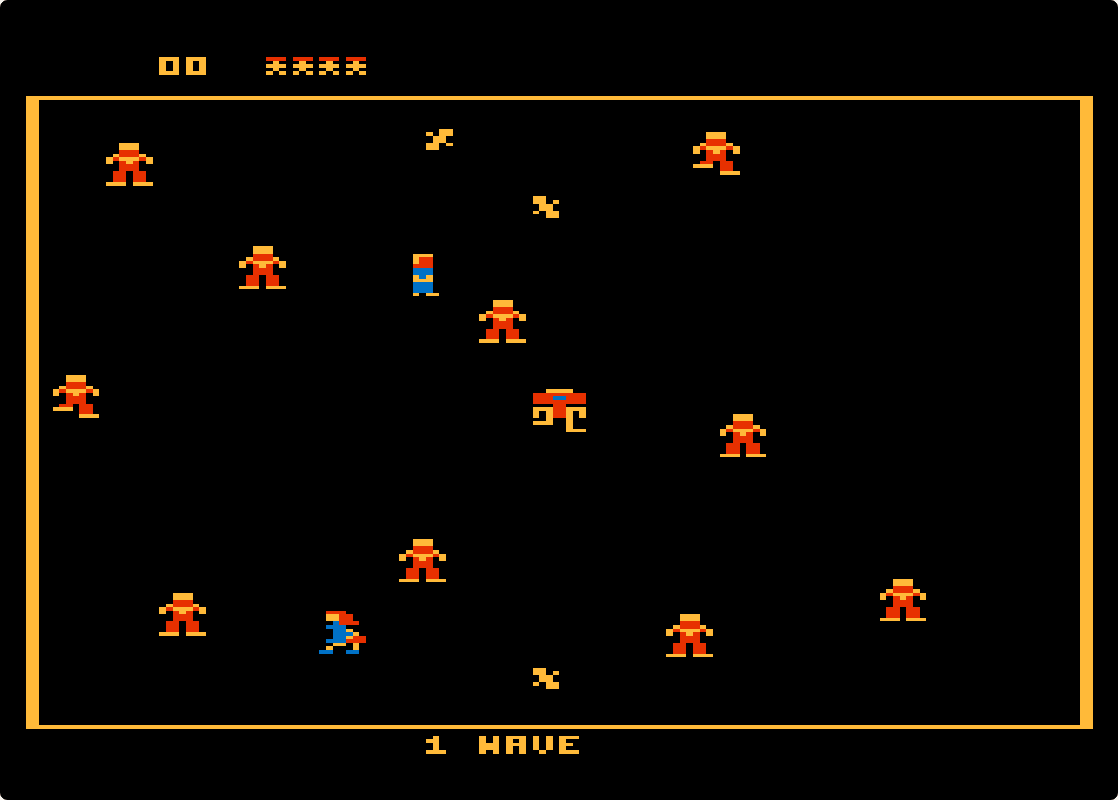
Two games came with a plastic holder that joined two 5200 controllers side by side, one stick to move and one to fire, as in the arcade. Robotron: 2084 also has a one-controller mode, which is what you get from the keyboard: you move with the arrows and your shots go in the direction you are moving, firing with Z. Space Dungeon was built for two sticks only, and the second stick is not available from the keyboard; see the game’s page for the current state of play there.
Gamepads, phones and tablets
EmulatorJS reads USB and Bluetooth controllers through the browser. Connect the pad and press one of its buttons while the game page is open, because browsers only show a gamepad to a page after a button press. The page maps the pad’s main buttons to the two fire buttons, Start and Pause, its shoulder buttons and sticks to the keypad keys, and the controller icon in the toolbar lets you change any of that. On a touch screen the emulator draws its own buttons over the game; they work, but a small screen and a twelve-key keypad are an awkward match, so a Bluetooth pad is the better way to play on a tablet.
Common problems and fixes
The keys do nothing
Click once on the game screen. The emulator only listens to the keyboard while it has focus, and you lose focus whenever you click the address bar, a link or another window. If the stick works but nothing starts, the game is waiting for Enter, or for a keypad choice first. A few games, such as Galaxian, start from a digit key rather than from Enter.
The page scrolls instead of the game moving
Same cause: the game screen does not have focus, so the browser treats the arrow keys as scroll keys. Click the screen and try again. While the game has focus, use the mouse wheel to read the text below it.
There is no sound
The game starts from your click on Play, which is what browsers need before they allow sound, so silence usually means a mute somewhere: the speaker button in the toolbar, a muted tab, or the system volume. Some 5200 games are quiet by design, and a few can switch their music off from the keypad, such as Astro Chase and Keystone Kapers, so check that you have not pressed that key.
The game stutters or runs slowly
The emulator runs on your device, not on our server. On an older laptop or phone, close other tabs and anything that plays video, and avoid running two emulators at once. Full-screen mode does not cost more than the normal view. If a game still crawls, the emulator itself is the limit on that device.
“Could not load the emulator” or a black screen
The core did not finish downloading, which can happen on a weak connection or when a browser extension blocks scripts. Reload the page and press Play again. If a game boots but freezes, use Restart in the toolbar before reloading; and if a game is still broken after that, tell us through the contact page and name the game.
Where to start
To learn the keys, start with Pac-Man or Ms. Pac-Man, which need only the arrows, two keypad keys and Enter. Pole Position is the best test of the two fire buttons. Centipede shows how well the arrows stand in for the analog stick, and Joust is the first thing to try with a friend. When you want to see what the keypad was for, open Star Raiders, press K to look at the on-screen keypad, and read the controls table on its page before you take off.
The Atari 2600 and 7800 games on this site use different emulators with their own keys; those are explained in our guides to playing Atari 2600 games in your browser and playing Atari 7800 games in your browser.