Every game on AtariOnline.org runs in your browser through Javatari, an open-source Atari 2600 emulator written in JavaScript. There is nothing to install: open a game page and the cartridge loads by itself. What is less obvious is how to press buttons a keyboard does not have, such as the console’s Reset switch, a paddle dial or a second joystick. This guide covers the keys, gamepads, phones, save states and the most common problems.
The basics: starting a game
When a game page opens, the emulator switches the virtual console on by itself and the game’s title screen or demo mode appears. Most Atari 2600 games do not start until you tell them to. On the real console you pressed the Game Reset switch; in the emulator that is F12. Many games also start when you press the fire button, but F12 works almost everywhere, so it is the key to remember.
Before you press anything, click once on the game screen. The emulator only receives your key presses while it has the browser’s focus, and the first click also allows the browser to play sound (more on that below).
Keyboard controls
These are the emulator’s default keys. The same layout works for every game on the site.
| Action | Player 1 | Player 2 |
|---|---|---|
| Joystick up / left / down / right | Arrow keys | T / F / G / H |
| Fire button | Space | A |
| Turbo fire (repeating shots) | Delete | . (full stop) |
| Difficulty switch | F4 | F9 |
The console switches are shared by both players:
- F12 – Game Reset (start or restart a game)
- F11 – Game Select (step through the game variations)
- F2 – TV Type (colour or black-and-white)
- F1 – Power (switch the console off and on again)
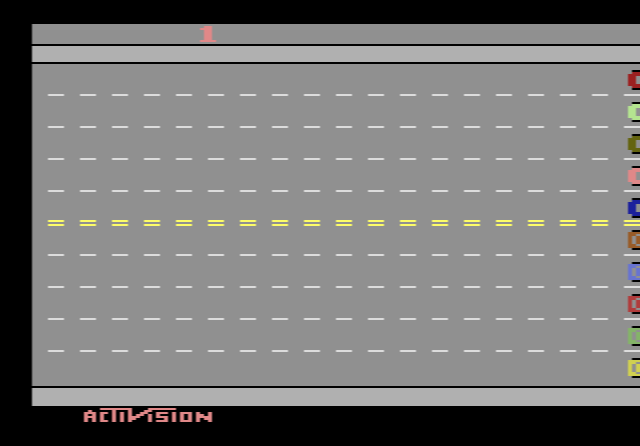
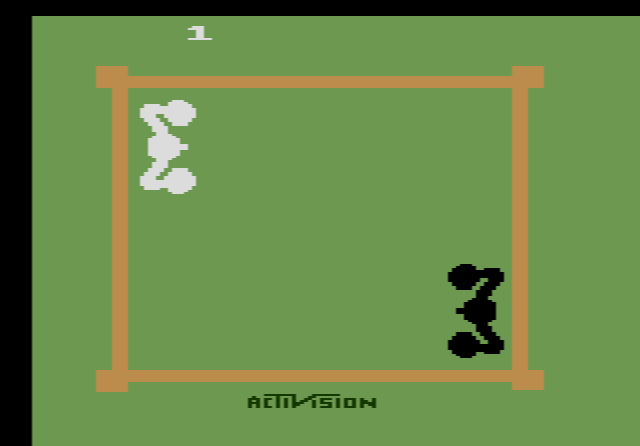
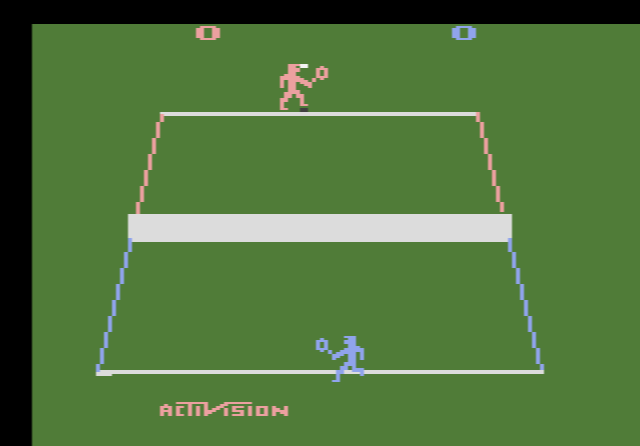
Two people can share one keyboard: one uses the arrows and Space, the other T/F/G/H and A. That is how two-player games like Freeway, Boxing or Tennis are meant to be played here. If you do not like the layout, the Controllers tab in the emulator’s settings lets you click a key and assign a new one, and a button there reverts to the defaults.
Console switches in the emulator
The Atari 2600 had physical switches on the console itself, and games used them for far more than turning the machine on. The emulator gives each switch a function key. When you press one, a short message in the corner of the screen shows the new setting: “P1 Expert” or “P1 Novice” for the difficulty switches, and “COLOR” or “B/W” for the TV type. Expert is the A position, Novice is B. Both difficulty switches start in the B position and the TV type starts on colour.
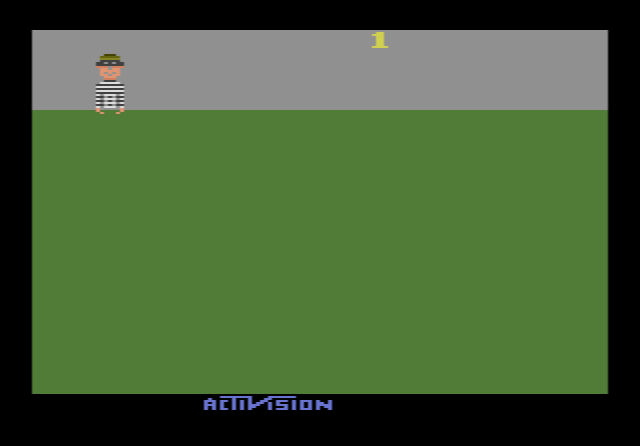
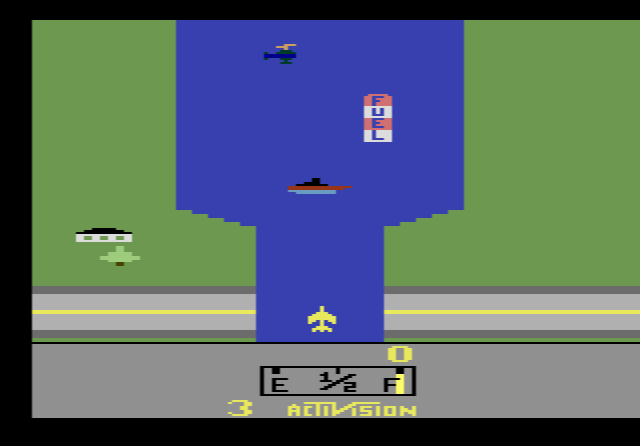
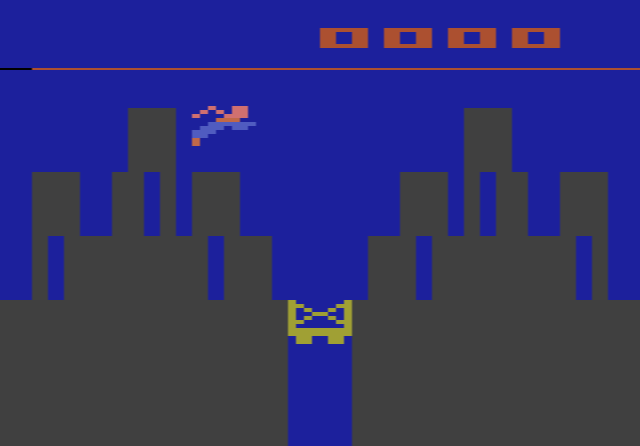
What each switch does depends entirely on the game. In Kaboom! the difficulty switch halves the width of your buckets. In River Raid it decides whether your missiles fly straight or follow your jet. In Superman the Select switch pauses the game. Each game page on the site lists what the switches do for that game, and our separate guide to the console switches goes through many more examples.
You do not have to use the keyboard for the switches. The bar under the game screen has Game Select and Game Reset buttons, and the emulator can also show a panel with the console’s switches that you click or tap directly. This is the easiest way to reach them on a tablet.
Paddle games
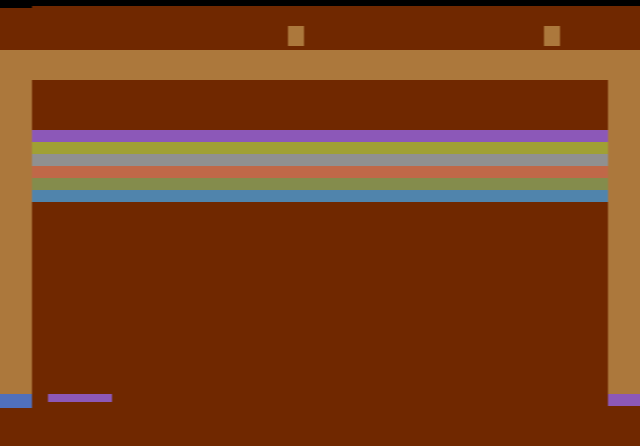
Some of the best 2600 games were made for paddle controllers: a round dial you turn to slide something left and right, with one button on the side. Breakout, Super Breakout, Kaboom!, Circus Atari, Video Olympics and Warlords are the best-known examples on the site.
For these games the emulator switches to paddle mode automatically. The controls then change a little:
- Left and right arrows turn Player 1’s dial. Hold the key to keep turning.
- Space is the paddle button.
- Up and down arrows change how fast the dial turns, on a scale from 1 to 10. The current value appears on screen as “P1 Paddle speed”. It starts at 2, which is precise but slow; turn it up for games like Kaboom! where the bombs fall fast.
- Player 2 uses F and H to turn the second dial, A as the button, and T and G for the speed.
- Alt + L switches between paddle mode and joystick mode by hand, in case a game is detected wrongly.
A keyboard is a poor stand-in for a dial, which could cross the screen in a flick of the wrist. A gamepad’s analog stick works better (see below). The emulator handles two paddles, which covers one- and two-player paddle games. Warlords was designed for up to four players with two pairs of paddles, so here you can only play it with one or two people.
Playing with a gamepad
Javatari supports USB and Bluetooth gamepads through the browser’s standard Gamepad API. Connect the pad, then press any of its buttons while the game page is open: browsers only reveal a gamepad to a web page after a button has been pressed. The emulator checks for new controllers about once a second, so give it a moment. The first pad becomes Player 1 and a second pad Player 2.
With the default settings, a controller in the common Xbox-style layout works like this:
- D-pad or left stick: joystick directions
- A (bottom face button): fire
- B (right face button): turbo fire
- Start / Menu: Game Reset
- Back / View: Game Select
- Left bumper: pause
- Right trigger / left trigger: fast forward / slow motion
In paddle games the left stick’s horizontal movement acts as the dial, which feels much closer to the original than the arrow keys. Alt + J cycles through the gamepad modes, including one that swaps which pad is Player 1, and turns gamepad support off if a pad is sending unwanted input. On other controllers the buttons sit in the same positions even if their labels differ.
Playing on a phone or tablet
On phones and tablets the emulator turns on touch controls. They appear when the game runs in full screen: a directional pad on the left, and on the right a red fire button and a blue turbo-fire button. Two small extra buttons handle pause and fast forward, and the Select and Reset buttons are in the bar. There is also an option to make the directional pad bigger, which helps on small screens.
Touch works best for slower games that use the joystick and one button, such as Adventure or Pitfall!. Fast shooters and paddle games are hard to play on glass. If your phone or tablet pairs with a Bluetooth gamepad, that is by far the better option, and it works the same way as on a computer.
Save states
Atari 2600 cartridges could not save anything, but the emulator can freeze the whole console at any moment and bring it back later.
- Ctrl + 0–9 saves the current moment to one of ten slots. The screen confirms with “State 1 saved” (or whichever number you used).
- Alt + 0–9 loads that slot. If the slot is empty you will see “State 1 not found”.
- F8 saves the state as a file on your computer. The emulator’s help screen says you can load it again by dragging the file onto the game screen.
Save states are stored in your browser, not on our server. They survive closing the tab, but they stay on that one browser and device, they disappear if you clear the browser’s site data, and a private window keeps nothing after you close it. The ten slots are also shared by every game on the site, so saving to slot 1 in Pitfall! replaces whatever you had saved in slot 1 in another game. Give each game its own numbers.
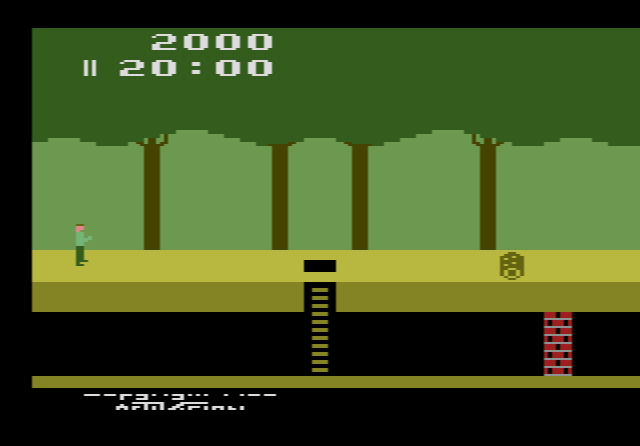
Save states are ideal for long games. Pitfall! gives you 20 minutes to collect its treasures, and a save before a risky jump spares you from starting over.
Other useful hotkeys
- Alt + P – pause and resume
- Alt + F – while paused, advance one frame at a time
- Fast forward and slow motion – the emulator has hotkeys for both; open its Help & Settings screen (the menu icon in the bar under the game) to see the current keys
- Alt + Enter – full screen
- Alt + G – save a screenshot
- Alt + K – swap the Player 1 and Player 2 controls
- Alt + H – change the turbo-fire speed
- Alt + Q – switch between NTSC and PAL video
- Alt + C – turn collision detection off, which often lets you pass through enemies and walls; useful for exploring a maze, not for a fair high score
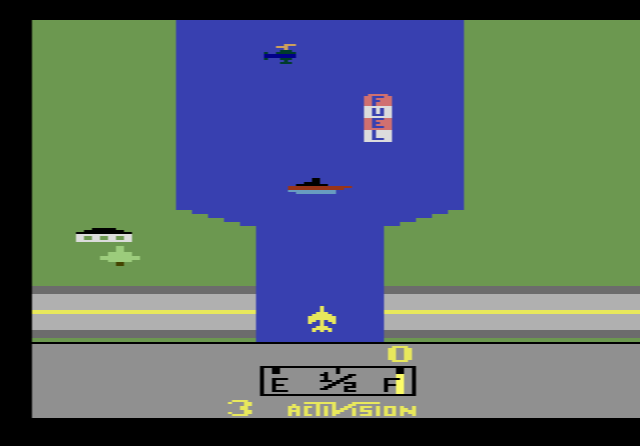
Slow motion is a good way to learn a hard section: at reduced speed, the gaps between the helicopters and fuel depots in River Raid are much easier to read.
What the browser cannot do
The emulator handles joysticks and paddles. It does not emulate the other Atari controllers:
- Keypads. Some cartridges came with a 12-button keypad. Star Raiders used one for its galactic map, hyperwarp and view changes, and without a keypad those commands are out of reach. Treat it as only partly playable here.
- Driving controllers. These look like paddles but spin endlessly. Indy 500 was sold with them, so its steering will not feel as intended with the keyboard.
Common problems and fixes
There is no sound
Browsers block audio until you interact with the page. The emulator starts its sound on your first click, tap or key press, so click the game screen once. If it is still silent, check that the browser tab is not muted and that your system volume is up.
The keys do nothing
The emulator lost focus, usually because you clicked somewhere else on the page. Click the game screen again. If only the fire button works, the game may simply be waiting for F12. On many laptops the F-keys control brightness and volume by default; hold the Fn key together with F12, F11 and the rest, or switch your keyboard’s function-key mode.
The browser reacts instead of the game
F11 is also the browser’s full-screen key, and F12 opens the developer tools in some browsers. When the emulator has focus it normally catches these keys first. If the browser still takes them, click the game screen and try again, or use the Select and Reset buttons in the bar under the screen.
Player 2’s keys stop working
Many keyboards can only register a few keys at once. When two players hold several keys at the same time, some presses are lost. This is a limit of the keyboard, not the emulator. A gamepad for one of the players solves it.
A paddle game will not respond, or a joystick game acts strangely
The automatic controller choice may be wrong. Press Alt + L; the screen shows “Controllers: Paddles” or “Controllers: Joysticks”. If the game seems to react to the other player’s keys, press Alt + K to swap sides.
The picture is black and white
You pressed F2, the TV type switch. Press it again to get colour back. Some games use this switch for something else, such as a pause, so check the game page if colour does not return.
The game froze or behaves oddly
Press F12 to restart the game. If that does not help, press F1 twice to switch the console off and on, or reload the page. If the game is still broken, let us know through the contact page and name the game.
Where to start
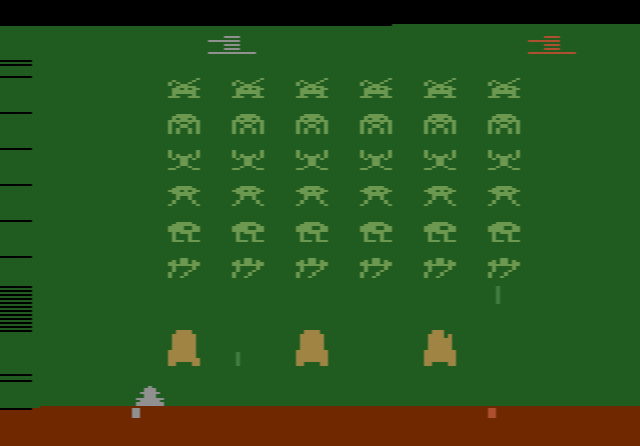
If you want to try the controls on something simple, Space Invaders needs only the arrows, Space and F12. Frogger is a good test of the difficulty switch, and Kaboom! shows how paddle mode feels. Every other game on the site plays the same way.