The original Atari 2600 of 1977 had six switches along the top of the console: power, TV type (colour or black-and-white), game select, game reset, and a difficulty switch for each player. In 1980 Atari moved the two difficulty switches to the back of the machine, leaving four on the front. Most players remember Reset and forget the rest, but the other switches often change a game in ways the screen never tells you about. This guide explains what each switch was for, how individual games used them, and which key does the job in the emulator on this site.
The switches and their keys
| Console switch | Emulator key | Usual job |
|---|---|---|
| Power | F1 | Switch the console off and on |
| TV Type (Color / B-W) | F2 | Colour or black-and-white picture |
| Left difficulty (Player 1) | F4 | A or B setting for Player 1 |
| Right difficulty (Player 2) | F9 | A or B setting for Player 2 |
| Game Select | F11 | Step through the game variations |
| Game Reset | F12 | Start or restart a game |
When you press F2, F4 or F9, the emulator shows the new position in the corner of the screen: “COLOR” or “B/W” for the TV type, and “P1 Expert” or “P1 Novice” (P2 for the right switch) for difficulty. Expert means position A and Novice means B. Both difficulty switches start on B, and the TV type starts on colour. The bar under the game screen also has buttons for Select and Reset, which is handy on a touch screen.
One thing is worth knowing before we go through them. Apart from power, the switches do nothing by themselves. They are simply inputs that the cartridge can read, and every game decides for itself what they mean, or whether they mean anything at all. That is why the same switch halves your buckets in one game and pauses another.
Game Reset: start, restart, or something else
In almost every game, Reset starts a new game with the variation and settings you have chosen. That is why F12 is the first key to press on any game page here. A few games give it a twist.
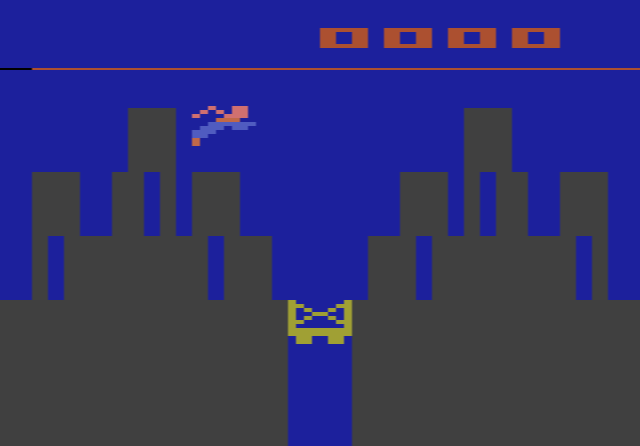
In Adventure, Reset is part of the game itself. If a dragon swallows you, pressing Reset “reincarnates” you in front of the golden castle, as the manual puts it, and you carry on in the same kingdom instead of starting from scratch. In Superman, pressing Reset only gets the game ready; play and the clock begin when you move the joystick.
Game Select: choosing a variation
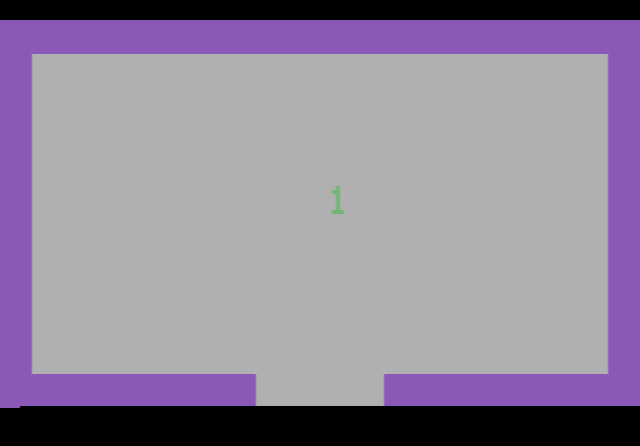
Early cartridges packed many versions of the same game onto one chip, and Select was how you chose between them. Each press moves to the next game number, which usually appears at the top of the screen. Pick a number, then press Reset to play it.
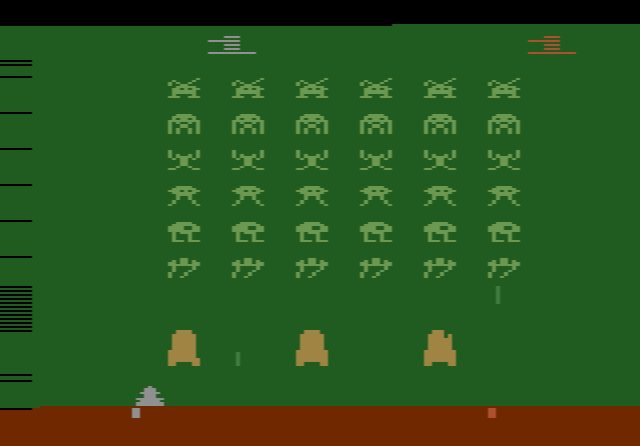
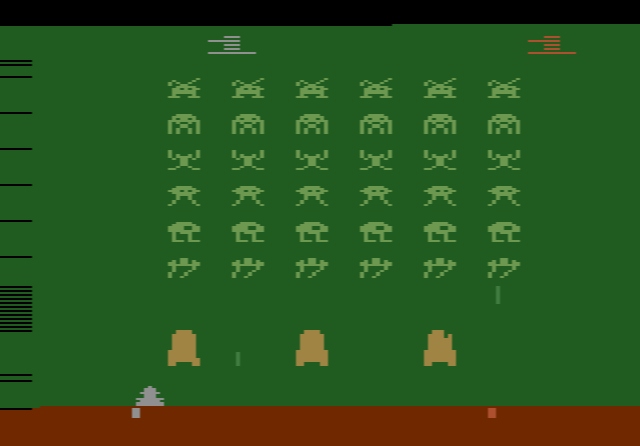
- Space Invaders has 112 variations, built from options such as moving shields, zigzagging bombs, fast bombs and invisible invaders.
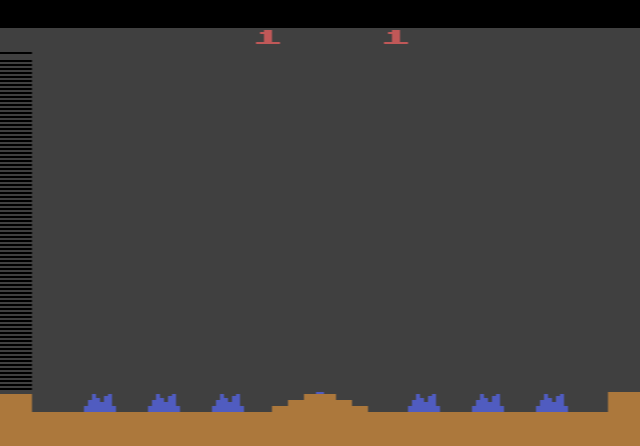
- Missile Command has 34: games 1–17 for one player and 18–34 for two, with games 17 and 34 as slower versions for young children.
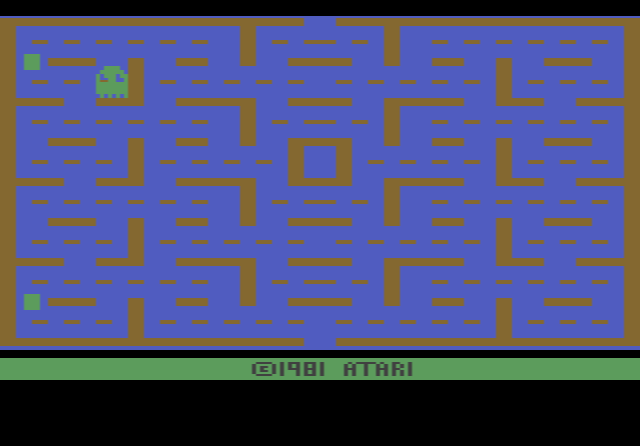
- Pac-Man has eight, mixing two speeds for Pac-Man with four speeds for the ghosts.
- Adventure has three levels. Level 1 is a small kingdom, level 2 adds catacombs and dungeons, and level 3 scatters the objects and dragons at random.
Some games use Select for something else entirely. Superman uses it as a pause button: press Select during play to stop the game, and push the joystick in any direction to carry on.
The difficulty switches: A and B
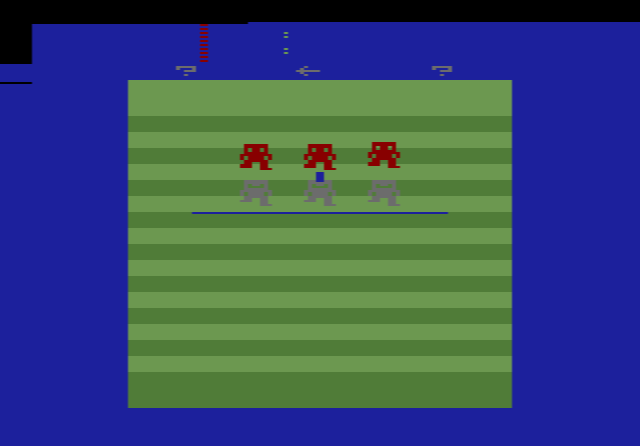
The two difficulty switches have two positions, A and B. As a rule, B is the easier, beginner setting and A is for experienced players. Some manuals use other names; the Football manual calls the positions Expert and Novice, the same words the emulator shows. The left switch belongs to Player 1 and the right switch to Player 2, which made them a built-in handicap system: a stronger player could set their own switch to A and still play a fair match against a beginner.
What A actually changes differs from game to game. The effects fall into a few groups.
Bigger or smaller targets
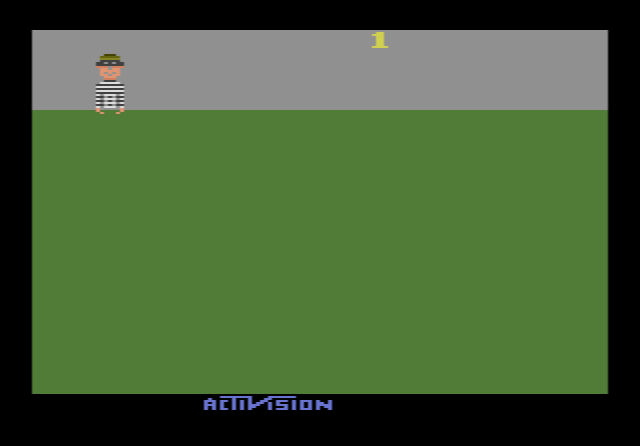
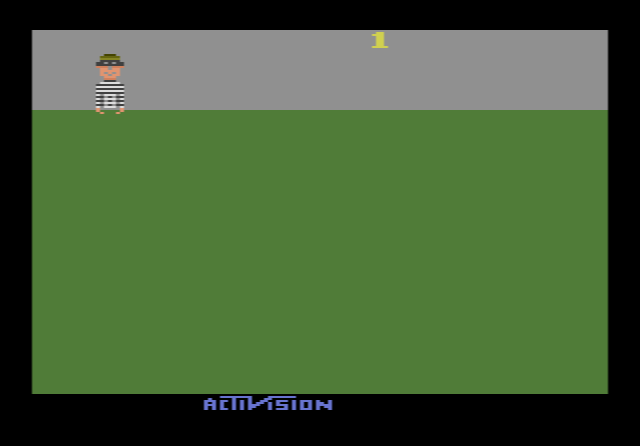
- Kaboom!: on A your water buckets are half as wide, so catching the Mad Bomber’s bombs gets much harder.
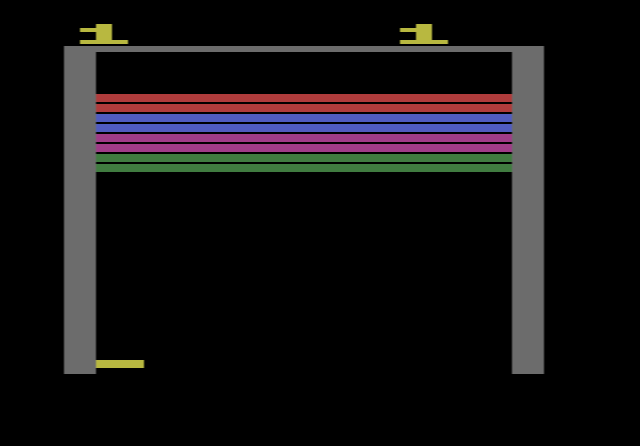
- Super Breakout: on B your paddle is twice the normal width; A gives the standard paddle.
- Video Olympics: A gives you a half-size paddle.
- Space Invaders: the switch sets the size of your laser cannon. B gives a smaller cannon that is harder for bombs to hit, and A a bigger one.
Faster enemies, slower weapons
- Missile Command: on A your anti-ballistic missiles fly more slowly, so you have to fire earlier to stop the incoming warheads.
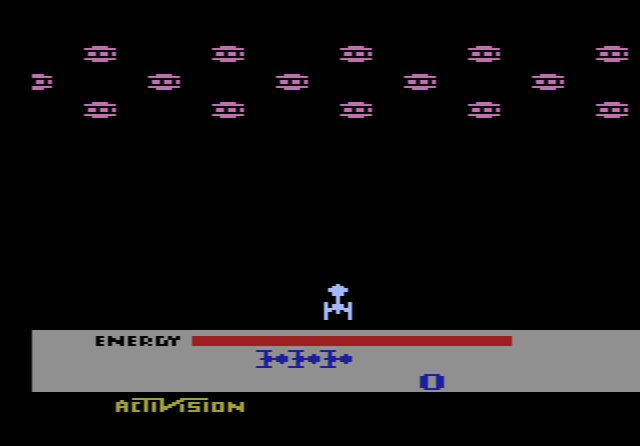
- Megamania: your missiles are fast on B and slow on A.
- Circus Atari: on A the clowns bounce faster after hitting balloons or the seesaw.
- Superman: with the right switch on A, the kryptonite satellites chase you twice as fast and the crooks run away twice as fast.
Different rules
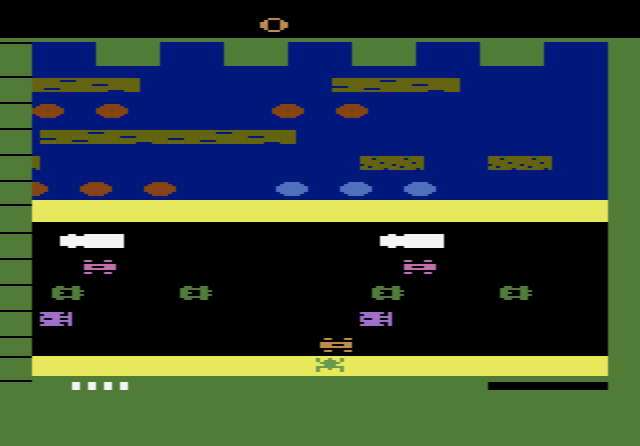
- Frogger: on B, a frog carried off the side of the screen on a log or turtle reappears on the other side. On A, being carried off the edge costs you the frog.
- Freeway: when a car hits your chicken on B, it is pushed back one lane. On A it goes all the way back to the curb.
- River Raid: on B your missiles are guided and follow your jet’s sideways movement; on A they fly straight ahead.
- Asteroids: B gives you asteroids only. On A, UFOs and satellites join in once you have scored enough, and they shoot back.
- Adventure: the left switch decides how fast the dragons bite. On B there is a short pause between a dragon’s attack and its bite, which gives you a chance to escape; on A there is hardly any. The right switch on A makes the dragons flee from the sword.
Handicaps for two players
In head-to-head games, A usually weakens the player who chooses it. In Boxing, a boxer set to A moves a little slower. In Football, a team on Expert cannot move from side to side as quickly. In Combat Tank-Plus, A shortens your missiles’ range. Because each player has a switch, you can set one to A and one to B and let an experienced player give a newcomer a head start.
Options that have nothing to do with difficulty
Some designers used the switches as extra option buttons.
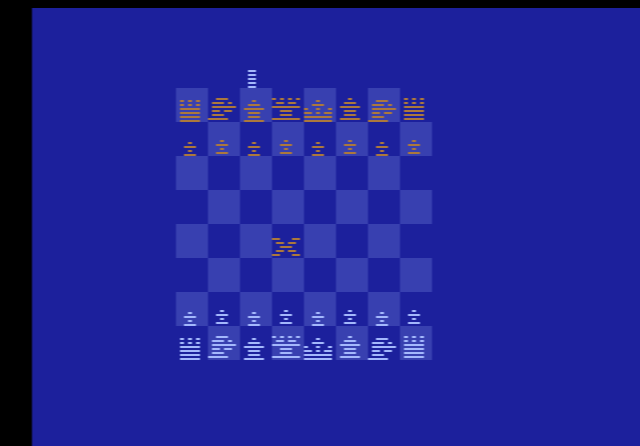
- Video Chess: the right switch decides who plays white. On A the computer moves first. With the left switch on A you can set up any position on the board, then switch back to B to play it out, which is useful for practising endgames.
- Haunted House: with the left switch on B, lightning now and then lights up the dark rooms. On A there is no lightning and you have to find your way in the dark.
- Pengo: the left switch turns the theme song on (A) or off (B).
- Moon Patrol: one switch turns off the background music, and the other chooses whether your buggy has two or three speeds.
- Star Raiders: the switches decide whether you run the attack computer and the shields yourself (A) or leave them to the computer (B).
Both switches together
A few one-player games read both switches as a pair, which gives four settings. Tapper is a clear example:
| Left switch | Right switch | Level |
|---|---|---|
| B | B | Beginner: five lives, slow customers |
| B | A | Intermediate: three lives, slow customers |
| A | B | Arcade: five lives, fast customers |
| A | A | Expert: three lives, fast customers |
Venture also combines the two switches into four skill levels, and each one starts you in a different part of the dungeon. Set them before you press Reset.
Color / B-W: the switch with a second career
The TV type switch was there so that games could work on both colour and black-and-white televisions. A game could read the switch and choose colours and brightness levels that stayed readable in grey. Early games took this seriously. The Football manual even warns that on a black-and-white setting the white team’s score disappears from the screen at the end of the game, and tells owners of black-and-white sets to leave the switch on colour.
As colour TVs took over, many later games ignored the switch, and others found new uses for it:
- Turmoil uses it as a pause. Pausing and resuming also changes the colour of the maze.
- Porky’s makes it a difficulty setting: on B-W the character Balbricker is at her most aggressive, on colour less so. Both difficulty switches on A plus the B-W setting gives the game’s expert level.
- Late Atari releases such as Secret Quest also put the switch to work in the game itself.
In the emulator, F2 flips this switch. If a game suddenly turns grey, you have probably pressed F2 by accident; press it again. If you want to try a game the way it looked on a black-and-white set, F2 is the way to do it, as long as the game supports it.
Games that ignore the switches
Not every game uses every switch. Enduro and Pole Position have a single game and use neither Select nor the difficulty switches. The difficulty switches do nothing in Atlantis, Warlords or Mario Bros. Battlezone ignores them too but uses Select for its three skill levels. If pressing F4 makes no difference, the game most likely does not read the switch.
A quick checklist before you play
- Read the game page first. Each game page on AtariOnline.org lists what the switches do in that game.
- Set the switches, then press Reset. Many games read the switches when a game starts. Some, like Frogs and Flies, let you change the difficulty in the middle of a game, but you cannot count on that.
- Start on B. The emulator already starts both switches on B. Move to A once the game feels easy.
- Use the switches as a handicap. In two-player games, give the stronger player the A position.
- Watch the on-screen message. “P1 Expert” means A, “P1 Novice” means B, and the corner message confirms every change.
For the rest of the emulator’s keys, including paddles, gamepads, touch controls and save states, see our guide to playing Atari 2600 games in your browser.